DTF White Layer
Drop in your transparent PNG and get a TIFF file with the white underbase layer already built in — exactly what Maintop and PrintEXP need to print. No Photoshop, no manual steps.
Windows desktop app · Free forever · No sign-up · Built for OKAI DTF printers
Download Free v1.0.3Windows 10 / 11 · ~4 MB
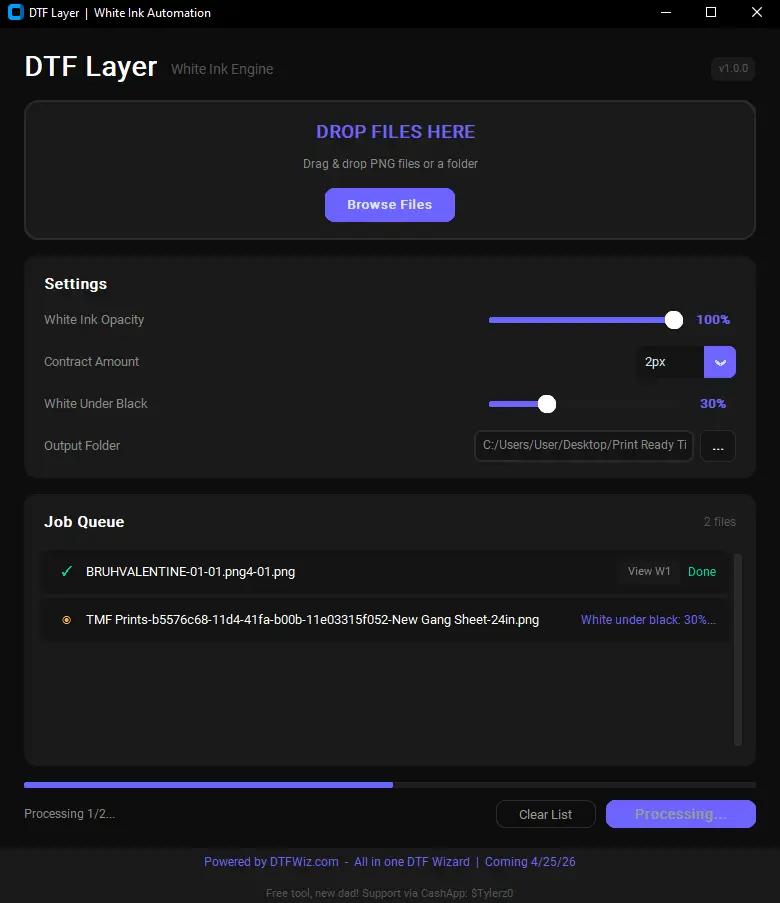
Drop files or a whole folder — processes everything in the queue
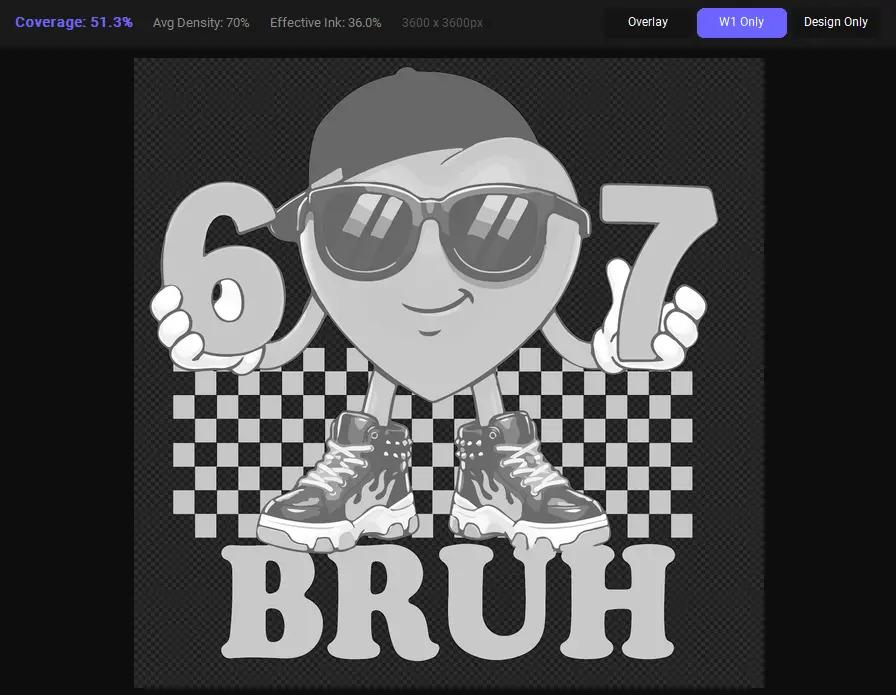
White Ink Viewer: see exactly what will print before you export
What is a white underbase and why does it matter?
DTF transfers print white ink first, then your colors on top. This white layer is what makes colors show up on dark shirts. Without it, colors look faded or invisible. Your RIP software (Maintop, PrintEXP) needs that white layer as a special channel called W1. This tool builds it automatically so you don't have to do it in Photoshop.
Drop in your PNG
Your artwork must have a transparent background. You can drop a single file or an entire folder, and it processes everything in the queue.
White layer is built automatically
Every part of your design gets a white underbase. You can shrink it inward slightly (contract) so no white peeks out from under the edges.
Export straight to your RIP
Output is a TIFF file with a W1 spot channel, the format Maintop and PrintEXP recognize natively. Open it and your white layer is already there.
What each setting does
White Ink Opacity
Default: 100%How solid the white underbase is. 100% is full white ink, which is the standard for most prints. Lowering it reduces the amount of white ink printed under your design, which some printers do to soften the hand feel or reduce ink cost on light fabrics.
Contract Amount
Default: 1px · Range: 1–4pxShrinks the white layer inward from the edge of your design. Without this, the white underbase can stick out slightly past the edges of your artwork and show as a white border on the finished transfer. A 1–2px contract is usually enough to prevent this.
White Under Black
Default: off (100% = off)Reduces how much white ink sits under dark or heavily saturated areas of your design. Dark colors already block light on their own, so a full white underbase underneath them can make the print feel stiff or slightly raised. Lowering this setting pulls back the white ink under those dark areas without affecting the rest of the design.
Output Folder
Default: dtf_ready/ subfolderWhere processed TIFF files are saved. By default they go into a dtf_ready folder next to your original files. You can point this anywhere on your computer.
White Ink Viewer
After processing, click View W1 on any file in the queue to open the viewer. It shows you exactly what the white layer looks like before you commit to it. Toggle between the full overlay, white layer only, or your original design.
What's included
Built for OKAI DTF printers
Output format is tested with Maintop and PrintEXP RIP software. The W1 spot channel is named and structured exactly as those programs expect it.
Changelog
- —Output now preserves the source file’s DPI / physical size. Previously every export was tagged at 300 DPI, which caused low-DPI sources (like Canva exports) to appear shrunk in Photoshop and RIP software
- —JPEG support: JPEG files can now be loaded directly (white layer generated from non-white pixels)
- —Fixed Process button not appearing after loading certain files
- —Save and load profiles: create, name, and switch between multiple settings presets
- —Improved edge quality: fine-tuned white layer generation for smoother, cleaner edges on prints
- —Output now matches Photoshop pixel-for-pixel, especially on designs with soft edges like text, curves, and rounded graphics
- —Initial release
- —Automatic white underbase generation from transparent PNG
- —Outputs TIFF with W1 spot channel, ready for Maintop and PrintEXP
- —Contract Amount 1–4px shrinks the white layer inward so no white peeks out
- —White Under Black reduces white ink under dark areas to save ink
- —White Ink Viewer shows coverage %, density, and effective ink before export
- —Job Queue lets you drag in a whole folder and process everything at once
Need to prep the file before adding the white layer?
DTFWiz handles background removal, transparent edge cleanup, DPI checks, and more, right in your browser before you run it through this tool.